I bought the touchscreen mouse for the future—something sleek, smart, and ahead of its time. What I got was a $149 paperweight with a learning curve steeper than a startup burn rate. The promise? A hybrid controller that blends touch gestures, app shortcuts, and precision tracking into one seamless device. The reality? A cluttered interface, inconsistent inputs, and a workflow that slows me down instead of speeding it up.
This isn’t just a bad gadget. It’s a textbook case of over-engineering—where every problem has a solution, and every solution creates three new problems.
The Allure of Innovation—And Why It Backfires
Touchscreen mice aren’t new, but recent models have doubled down on features: gesture zones, customizable screens, app-specific profiles, RGB lighting you can control via app, and even haptic feedback. Sounds futuristic? Absolutely. Useful? Not unless you’re willing to spend hours calibrating, troubleshooting, and retraining muscle memory.
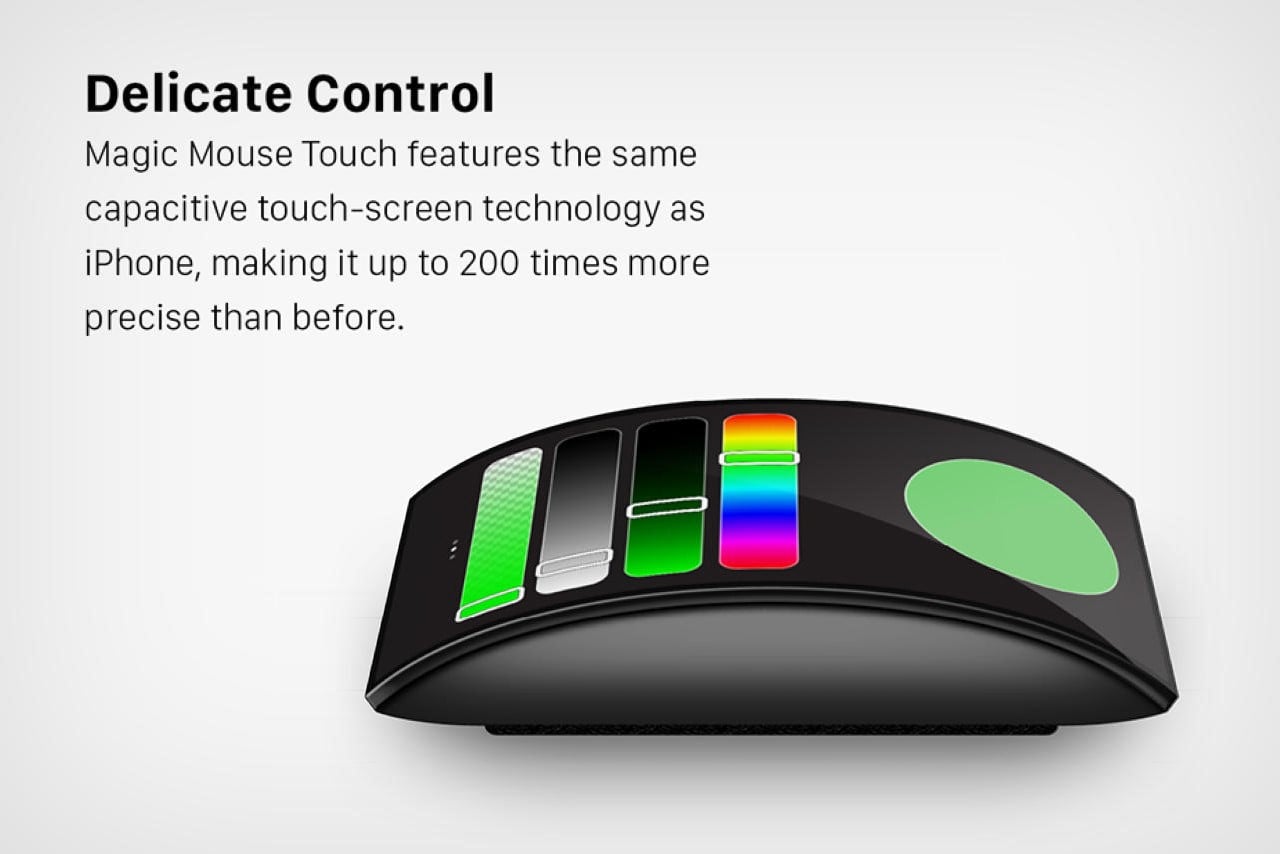
The device I tested—let’s call it the T-Mouse X9—has a 2.4-inch OLED touchscreen embedded into the top surface. You can swipe, tap, and pinch to control volume, switch desktops, or launch Photoshop tools. On paper, it’s brilliant. In practice, it’s a minefield of accidental inputs.
Common issues I experienced within the first week: - Swiping to adjust volume when I meant to click - Touchscreen freezing after standby - Apps failing to recognize gesture profiles - Battery draining twice as fast as claimed - No tactile feedback leading to mis-taps
This isn’t a refinement of an existing idea. It’s a reinvention in search of a purpose.
When “Smart” Becomes Stupid
The core flaw of the T-Mouse X9 is that it assumes users want more control surfaces, not fewer. Traditional mice rely on muscle memory—right click, scroll wheel, thumb button. You don’t think about it; you do it.
The touchscreen breaks that instinct. Instead of a dedicated button for “copy,” you tap a soft key on a screen. But because there’s no physical bump or click, you end up double-checking the screen to confirm the action registered. That’s two cognitive steps where there used to be one.
Real-world example: Editing a video timeline, I tried to scrub forward using a horizontal swipe on the touchscreen. Instead, the gesture triggered a brightness control overlay. Ten seconds later, after closing the pop-up and re-selecting the timeline, I was back on track—ten seconds lost.
Compare that to a standard scroll wheel or keyboard shortcut: immediate, reliable, zero ambiguity.
Feature Bloat: A Checklist of Unnecessary Complexity

Here’s what the T-Mouse X9 offers out of the box: - 12 programmable touch zones - App-specific profiles (Photoshop, Premiere, Slack, etc.) - Gesture-based shortcuts (pinch to zoom, swipe to switch tabs) - Always-on OLED display with clock, battery, or custom art - Wireless charging and USB-C - Companion app with cloud sync - Five DPI settings adjustable via screen menu
That’s not a feature list. It’s a manifesto for complexity.
And none of it matters if the fundamentals are broken.
I set up a profile for Figma—assigned pinch-to-zoom, three-finger swipe for artboard navigation, and a tap zone for the hand tool. Seemed perfect. But the touchscreen lagged by 200ms. In design work, that’s unacceptable. I missed drag selections, accidentally zoomed into pixels, and finally reverted to my old Logitech.
Bottom line: When a tool introduces latency—especially one meant to accelerate work—it fails its primary function.
Why Simplicity Still Wins in Input Devices
We glorify innovation, but we use simplicity. The best input devices disappear into your workflow. You don’t think about clicking—they just work.
Consider the Apple Magic Mouse. Minimalist. No side buttons. A touch surface that actually functions. Still, many users hate it—not because it’s complex, but because it’s too minimal for some tasks. Yet it works because it respects the user’s expectations.
The T-Mouse X9 does the opposite. It assumes you want to relearn everything.
What it gets wrong: - Forces you into a companion app ecosystem - Requires firmware updates for basic stability - Uses proprietary drivers that conflict with virtual machines - No default “safe mode” when software fails
Meanwhile, my $30 Microsoft Sculpt mouse has survived three laptops, two OS upgrades, and a coffee spill. Plug and play. No drivers. No touchscreen. No problems.
The Hidden Cost of Over-Engineering
Beyond frustration, over-engineered devices like this touchscreen mouse carry real costs:
1. Time Investment Setting up profiles, fixing sync issues, troubleshooting drivers—it took me 4.5 hours to “optimize” the mouse. That’s half a workday for a peripheral.
2. Workflow Disruption
When a tool fails mid-task, the mental context switch is costly. I lost focus mid-writing because the mouse froze during a research tab switch. Flow broken. Momentum gone.
3. Reliability Debt Every added feature is a potential point of failure. Touchscreen dies? You lose all shortcuts. Battery management glitch? 30-minute downtime. Compare that to a standard optical mouse—replace the battery, keep working.
4. E-Waste and Longevity The T-Mouse X9 uses a glued-in battery and proprietary components. When it dies (and it will), it’s landfill-bound. Simple mice can be repaired, reused, recycled.
Alternatives That Actually Work
If you’re tempted by the idea of a “smarter” mouse but want reliability, here are five better options—none with touchscreens:
| Model | Key Strength | Best For | Price Range |
|---|---|---|---|
| Logitech MX Master 3S | Hyper-precise scroll, customizable buttons | Designers, developers | $99 |
| Apple Magic Mouse 2 | Seamless macOS integration, touch surface | Mac users, minimalists | $79 |
| Microsoft Sculpt Ergonomic | Natural hand position, quiet clicks | Long typing sessions | $59 |
| Elecom TrackBall | Thumb-operated trackball, no wrist motion | Ergonomic needs, precision | $85 |
| Keychron Q1 Pro | Wireless mechanical keyboard-mouse combo | Typists, minimal desk setups | $149 (combo) |
Notice a pattern? None of these try to reinvent the mouse. They refine it.
The MX Master 3S, for example, has gesture buttons, app-specific profiles, and deep software integration—but it uses physical buttons, not a screen. You feel the click. No guessing. No lag.
Who Is This Touchscreen Mouse For? (Spoiler: Almost No One)
Maybe there’s a niche. 3D modelers using Maya who need instant tool palettes? Architects toggling layers in Revit? Possibly.
But even then, dedicated control surfaces like the Loupe or Stream Deck exist—and they’re better at their job because they’re not also trying to be a mouse.
For 99% of users—writers, developers, office workers, students—this device adds friction. It’s a solution for a problem that doesn’t exist.
And that’s the danger of over-engineering: it mistakes novelty for value.
The Verdict: Innovation Without Insight Is Waste
This touchscreen mouse isn’t just flawed. It’s a symptom of a broader trend—tech companies adding features to justify premium pricing, not user benefit.
It promises control but delivers confusion. It boasts customization but demands compromise. It looks futuristic but feels fragile.
I’ve gone back to my old mouse. The one with three buttons and a scroll wheel. It doesn’t do much. But what it does, it does well.
Sometimes, the most advanced technology is the one that gets out of your way.
FAQ
Why do touchscreen mice fail where touchscreen laptops succeed? Laptops have larger touchpads with standardized gestures and OS-level support. Mouse surfaces are too small for reliable touch input and lack physical feedback.
Can you disable the touchscreen and use it as a regular mouse? Technically yes, but you’re still paying for hardware you’re ignoring—and the weight/balance is often compromised.
Are there any professional workflows where it works well? Only in highly specific cases, like video editors using touch gestures for scrubbing, but even then, dedicated hardware like Contour ShuttlePRO is more reliable.
Does the screen add significant battery drain? Yes. The OLED display and touch sensor can reduce battery life by 40–60% compared to traditional wireless mice.
Is the companion software necessary? Unfortunately, yes. Without it, you can’t program gestures or switch profiles—rendering most “smart” features useless.
Could a future version fix these issues? Only if they reduce features, add haptics, improve responsiveness, and offer a fallback mode. Right now, the core concept is flawed.
What’s a better alternative for gesture control? A quality touchpad (like the Apple Magic Trackpad) or a Stream Deck for macros. Both offer precision without sacrificing reliability.
FAQ
What should you look for in This Touchscreen Mouse Is My Over-Engineering Nightmare? Focus on relevance, practical value, and how well the solution matches real user intent.
Is This Touchscreen Mouse Is My Over-Engineering Nightmare suitable for beginners? That depends on the workflow, but a clear step-by-step approach usually makes it easier to start.
How do you compare options around
This Touchscreen Mouse Is My Over-Engineering Nightmare? Compare features, trust signals, limitations, pricing, and ease of implementation.
What mistakes should you avoid? Avoid generic choices, weak validation, and decisions based only on marketing claims.
What is the next best step? Shortlist the most relevant options, validate them quickly, and refine from real-world results.